
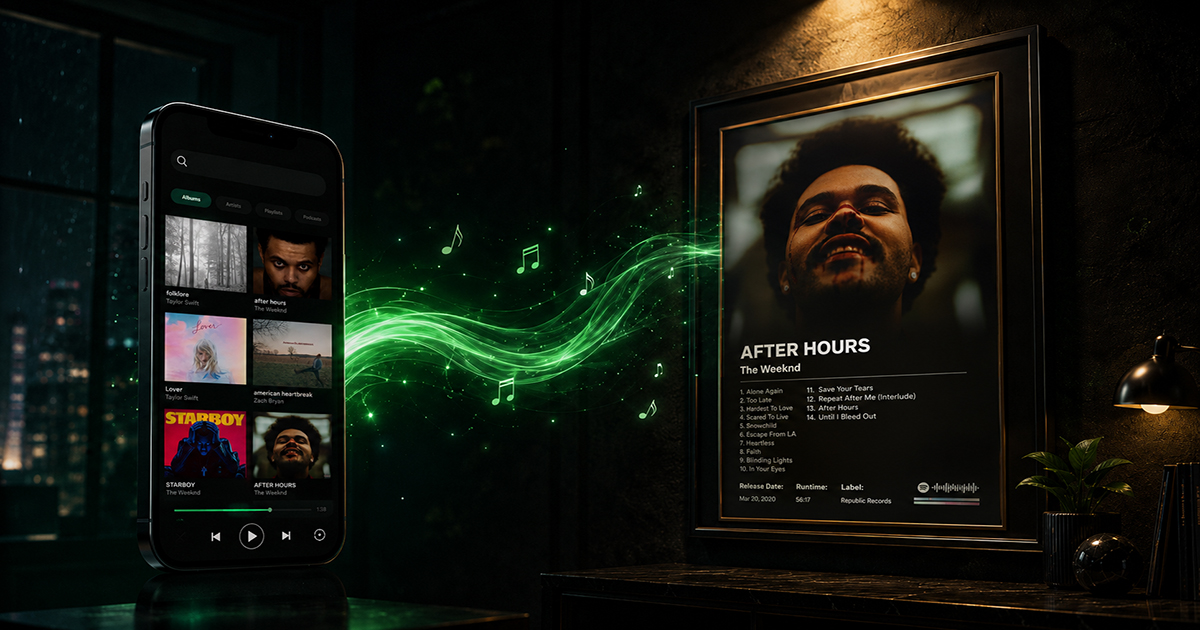
How to Make a Spotify Poster for Any Album
Spotify has over 100 million tracks across decades of music history. If it's been released, it's almost certainly on Spotify — which means its album art, tracklist, artist name, label, and release year are all sitting in a database waiting to be pulled into a poster.
Here's how to turn any Spotify album into a print-ready poster, step by step. No design skills, no Photoshop, no downloading artwork separately.
What You'll Need
- The name of the album or artist you want to make a poster for
- A browser (desktop or mobile)
- 5 minutes
That's it. PosterVibe connects directly to Spotify's API and handles the rest automatically.
Step 1: Go to PosterVibe and Open the Editor
Open your browser and go to postervibe.app. Click Start Designing to open the editor. You don't need to create an account to start designing — you'll only need one if you want to save your project or export at print quality.
The editor opens with a default template and a blank canvas. You'll see three main panels:
- Left panel — album search, field inputs, template selector, canvas size
- Center — the canvas (your poster preview, live)
- Right panel — properties for selected elements (font, color, position, size)
Step 2: Search Your Spotify Album
In the left panel, find the search bar labeled Search album or artist. Type the album name, artist name, or even a song title you remember.
PosterVibe searches Spotify's full catalogue in real time. Results appear instantly as you type. You'll see album covers, artist names, and release years in the dropdown.
Tips for finding your album:
- If searching a common album name, add the artist name: "folklore taylor swift"
- For older or less mainstream albums, try the artist name first
- For albums with special characters, try simplified spelling
Click your album from the results list. Within one to two seconds, the canvas updates:
- Album cover art appears on the canvas at full resolution
- Artist name fills in automatically
- Album title fills in automatically
- Release year fills in automatically
- Full tracklist appears — every song, in order, correctly numbered
- Record label fills in automatically
- Color palette is extracted from the cover art
Nothing to type. Nothing to source. The entire poster is populated from Spotify's data in seconds.
Step 3: Pick a Template
Click the Template tab in the left panel to open the template library. Browse 100+ designs and click any template to preview it instantly with your album's actual data loaded.
Matching template to album mood:
| Album type | Template to try |
|---|---|
| Dark, atmospheric (metal, electronic, ambient) | Dark Atmosphere, Midnight |
| Bright, indie, acoustic | Minimal White, Clean |
| Hip-hop, trap, modern R&B | Modern Bold, Urban |
| Jazz, soul, classic rock | Vintage Vinyl, Warm |
| Pop, mainstream | Modern Bold, Color Pop |
You can switch templates as many times as you want — each switch updates instantly with your album's data.
Step 4: Adjust the Canvas Size
In the Size tab, choose the format that matches how you'll use the poster:
- 2:3 — Wall print (fits A3, A2, 18×24, 24×36 frames)
- 4:5 — Instagram feed post
- 1:1 — Square (social media, CD-style display)
- 9:16 — Instagram Stories, phone wallpaper
- DIN A4 — 210×297mm Print
- DIN A3 — 297×420mm Print
- DIN A2 — 420×594mm Print
- DIN A1 — 594×841mm Print
- DIN A0 — 841×1189mm Print
For a wall poster, always choose 2:3.
Step 5: Customize (Optional)
The poster looks great already — the template handles the design, Spotify handled the data. But you can customize anything:
Change a font: Click any text element → select a different font in the right panel
Change a color: Click any element → click the color swatch in the right panel
Move elements: Click and drag any element on the canvas
Edit tracklist layout: Left panel → Fields tab → Tracklist → choose vertical or horizontal layout
Change background: Click empty canvas area → right panel shows background options (solid, gradient, image)
Step 6: Export Your Spotify Poster
Click Export in the top toolbar.
Sharing on Instagram or social media:
- Format: JPEG or PNG
- DPI: 72
- Free plan
Printing at home (A4/A3):
- Format: PDF
- DPI: 150
- Basic plan
Print shop quality (A2, 18×24, 24×36):
- Format: PDF
- DPI: 300, CMYK
- Pro plan
Click Download. Your Spotify poster is ready.
Ideas for What to Do With Your Spotify Poster
Bedroom wall — Frame it in an A3 or 18×24 frame and hang it above your desk or beside your record player.
Phone wallpaper — Export in 9:16 format. Your lock screen becomes a piece of album art.
Gift — Make a poster of someone's favorite album, frame it, and give it. The most personal music gift you can give.
Record display companion — If you own the vinyl, put the poster beside it. The album art at wall scale looks completely different from the 12-inch sleeve.
Spotify Wrapped poster — Make one for your most-played album of the year. More on that in our Spotify Wrapped poster guide →.
FAQ
Does PosterVibe need access to my Spotify account?
No. PosterVibe searches Spotify's public catalogue using their API — it doesn't connect to your personal account or access your listening history.
What if my album isn't on Spotify?
PosterVibe also searches MusicBrainz as a fallback, which covers many pre-streaming albums and independent releases. If neither database has your album, you can manually type the information into the text fields.
Can I use PosterVibe on mobile?
Yes. The editor works in mobile browsers, though a tablet or desktop gives you more control for fine adjustments.
Is there a limit to how many Spotify posters I can make?
The free plan supports up to 10 saved projects. Basic plan allows 50, Pro plan is unlimited.
Can I print the same poster multiple times?
Yes. Once you export the PDF, you can send it to any print shop as many times as you want.
Make your Spotify poster now — free →
Ready to Create Your Own?
Put these ideas into practice with our spotify poster maker, or explore the album poster maker, album cover poster maker, tracklist poster maker.